Adding Your Card to Wallet
Eligible U.S. Bank Mastercard purchasing cards with a virtual card account can be added directly to Apple Wallet or Google Wallet from the BlueBean mobile app.
Adding Your Card
When your card administrator issues you a mobile-enabled virtual card, it will become immediately available in your BlueBean mobile app.
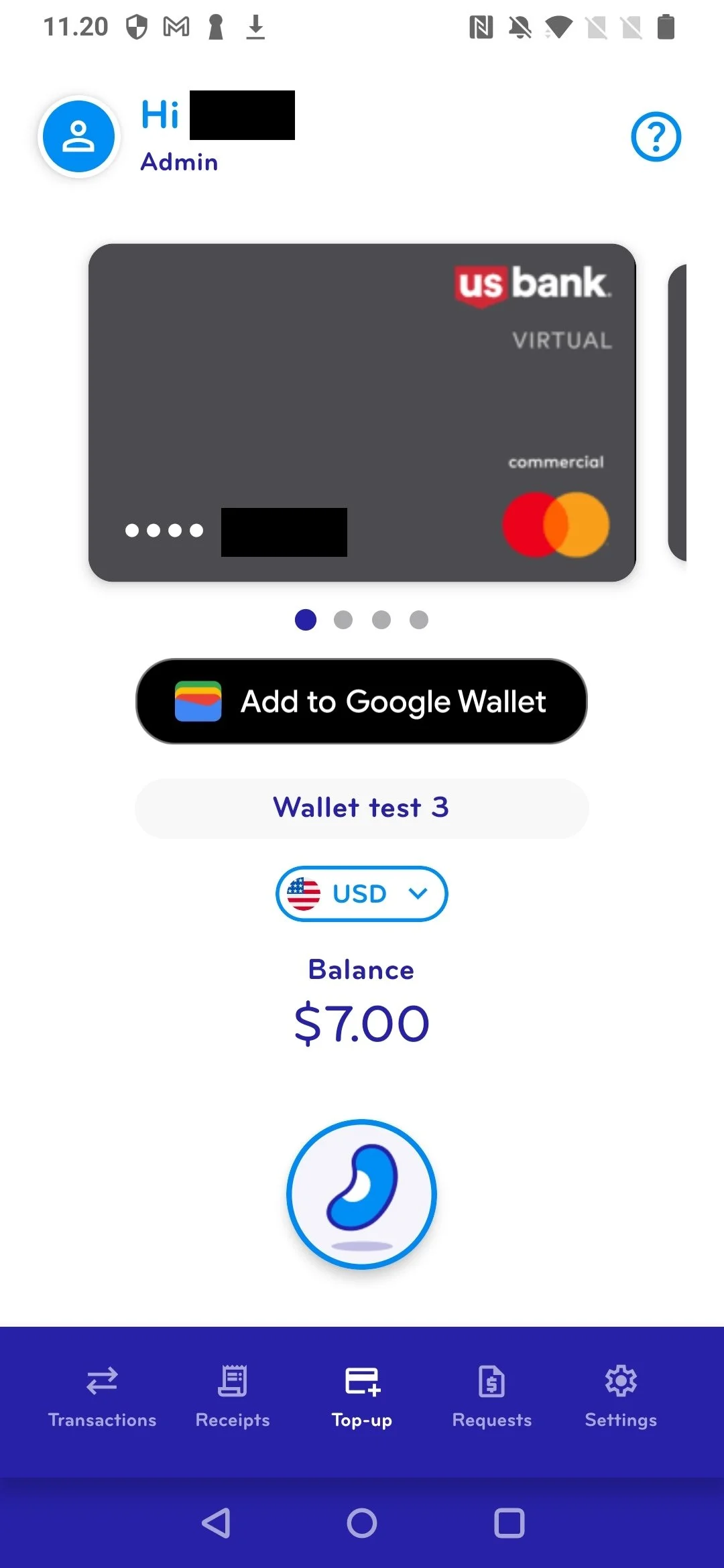
New cards are marked New and display an Add to Apple Wallet or Add to Google Wallet button.
Until the card is added to your mobile wallet, it cannot be used on your mobile device and top ups are disabled.
To add your card:
Open the BlueBean mobile app and locate your new card.
Tap Add to Apple Wallet or Add to Google Wallet.
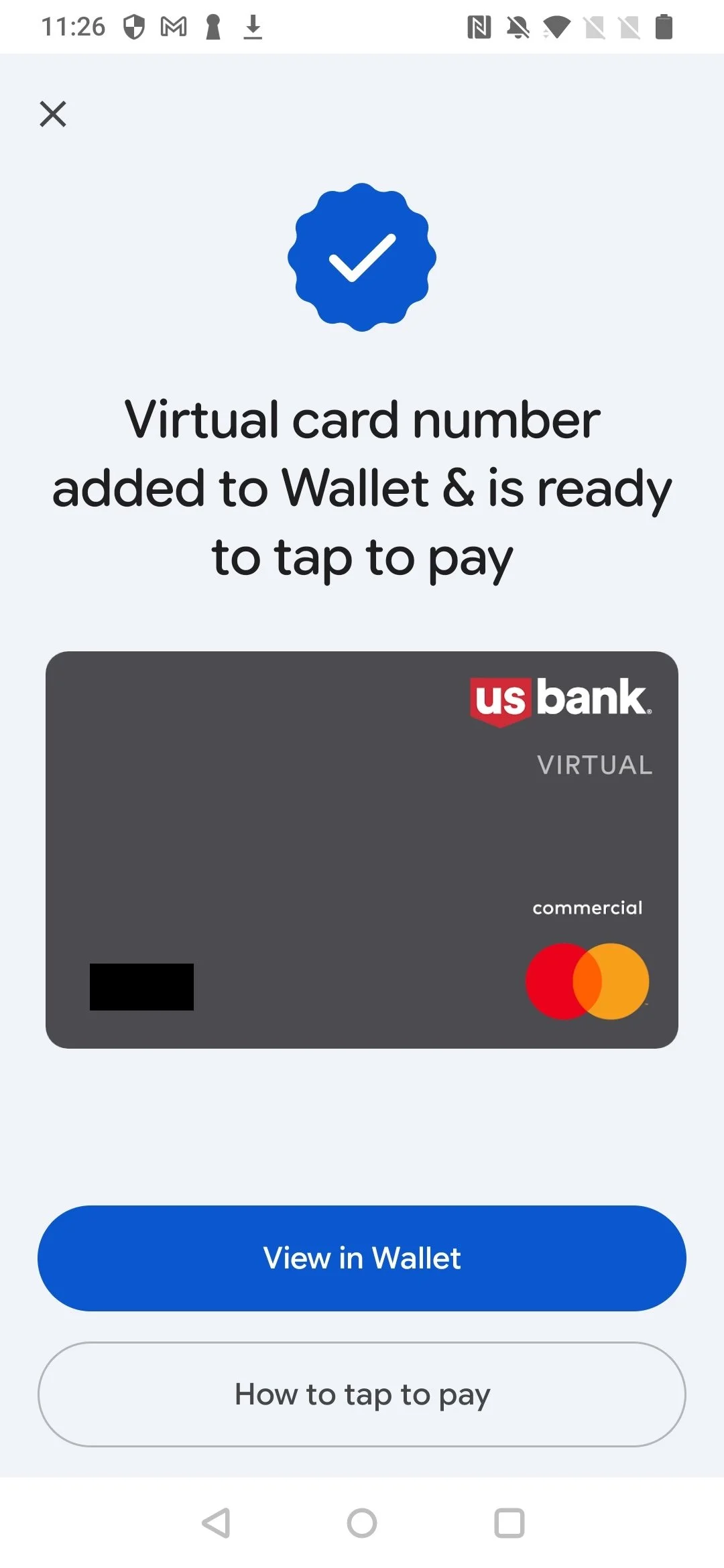
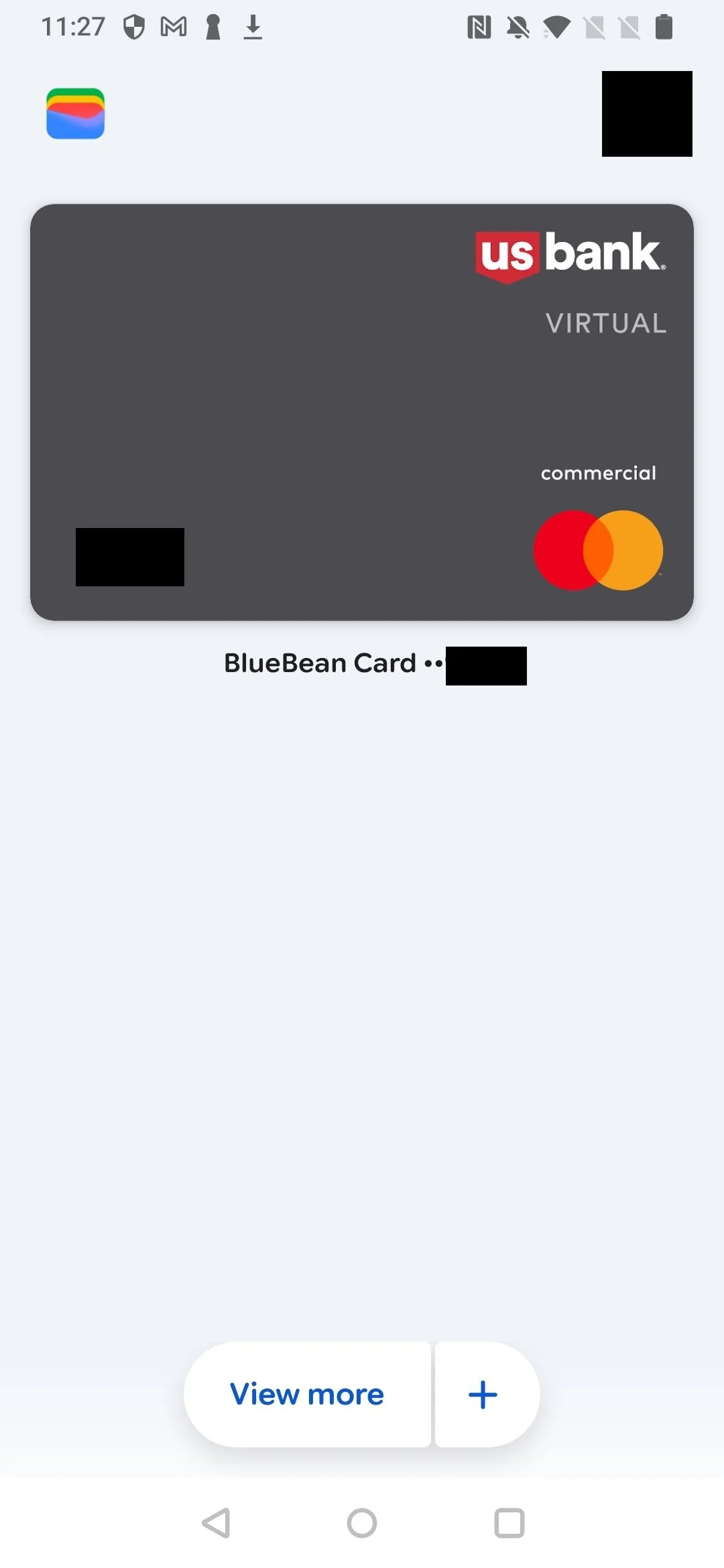
Follow the instructions in Apple Wallet or Google Wallet to complete the setup.
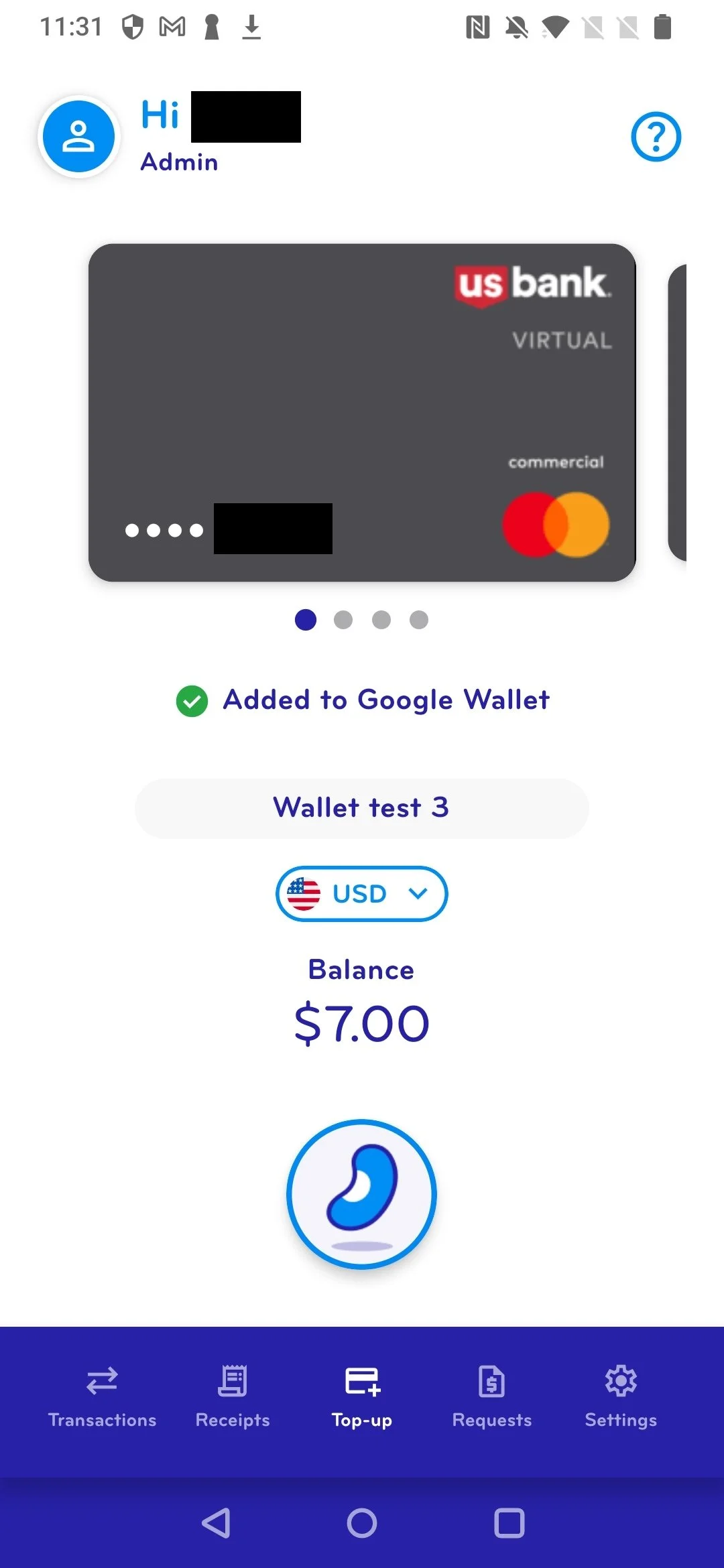
Once completed, your card will display Added to Apple Wallet or Added to Google Wallet in the BlueBean app.
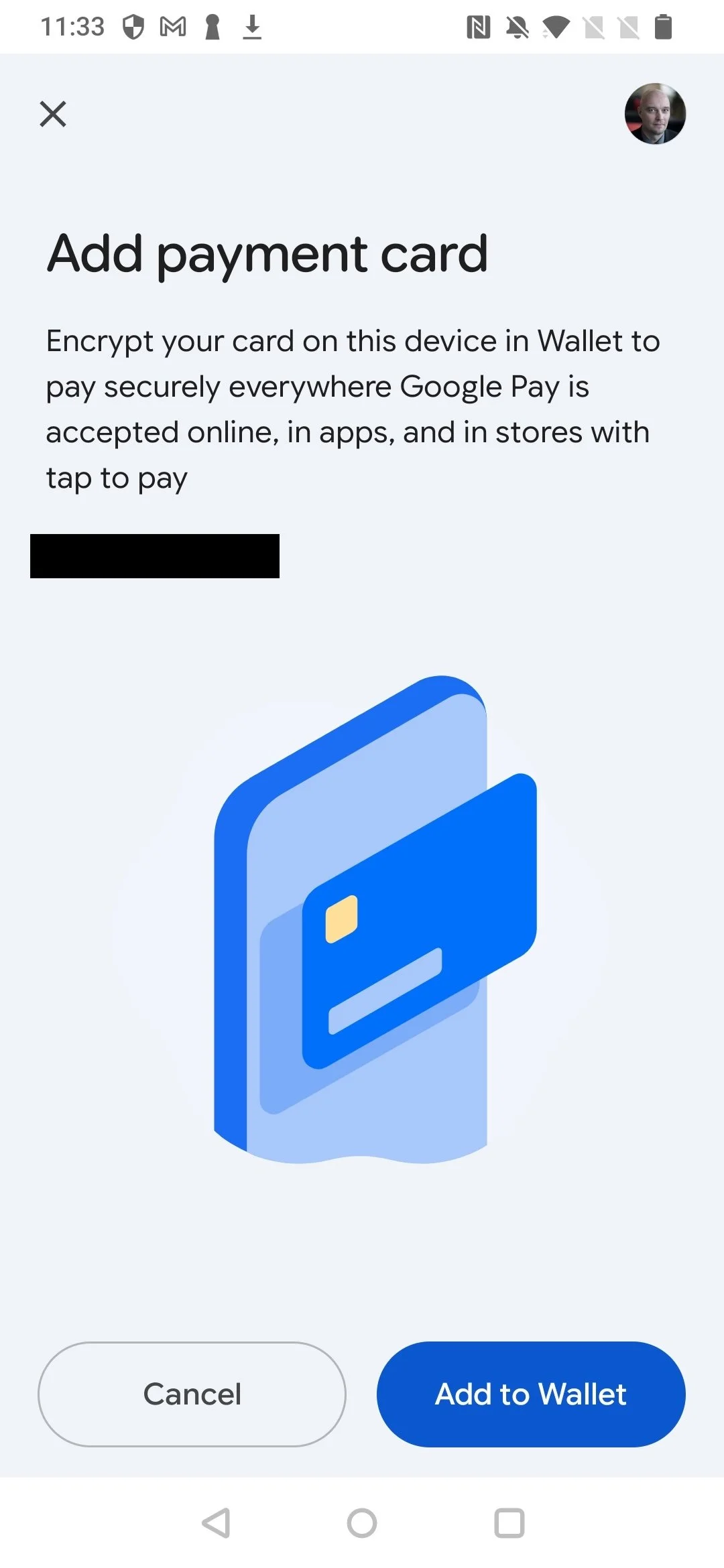
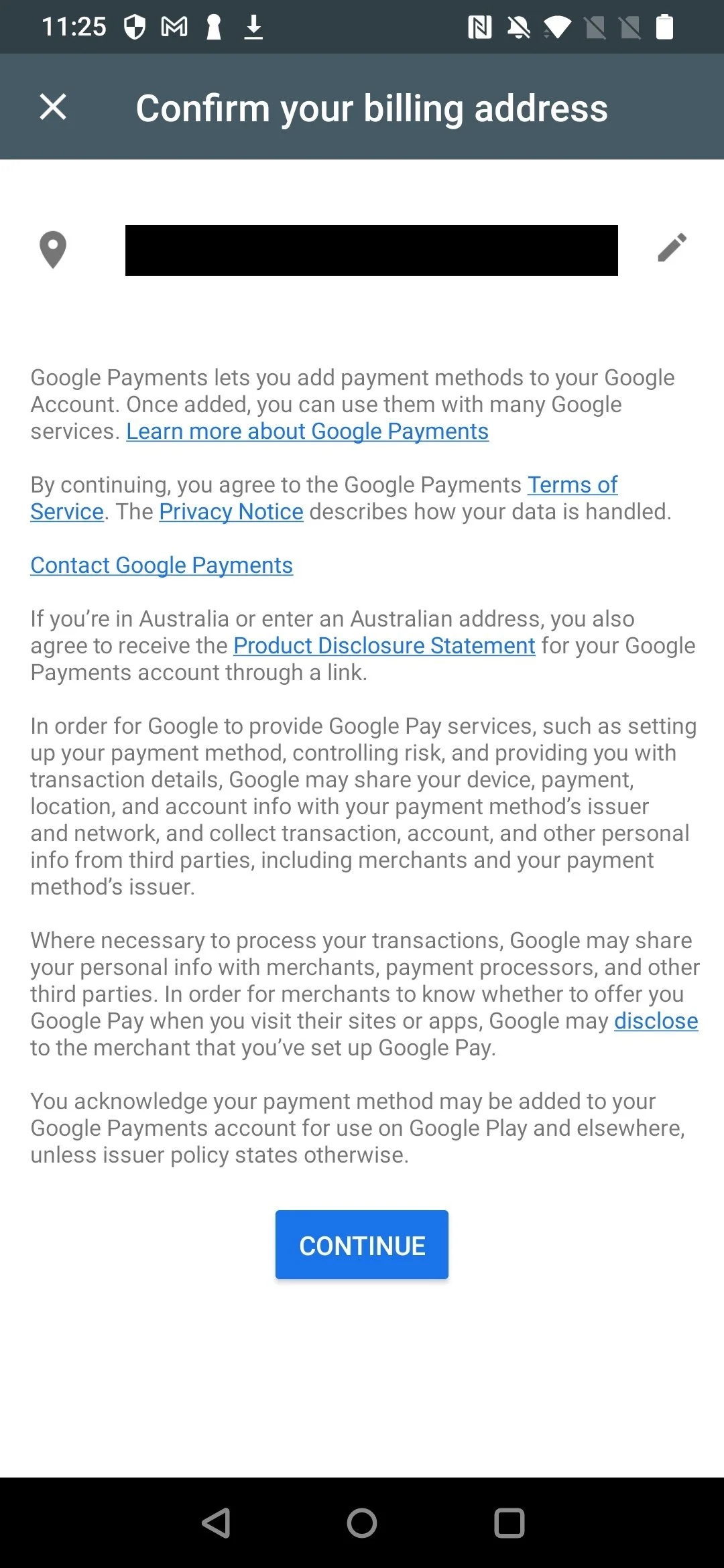
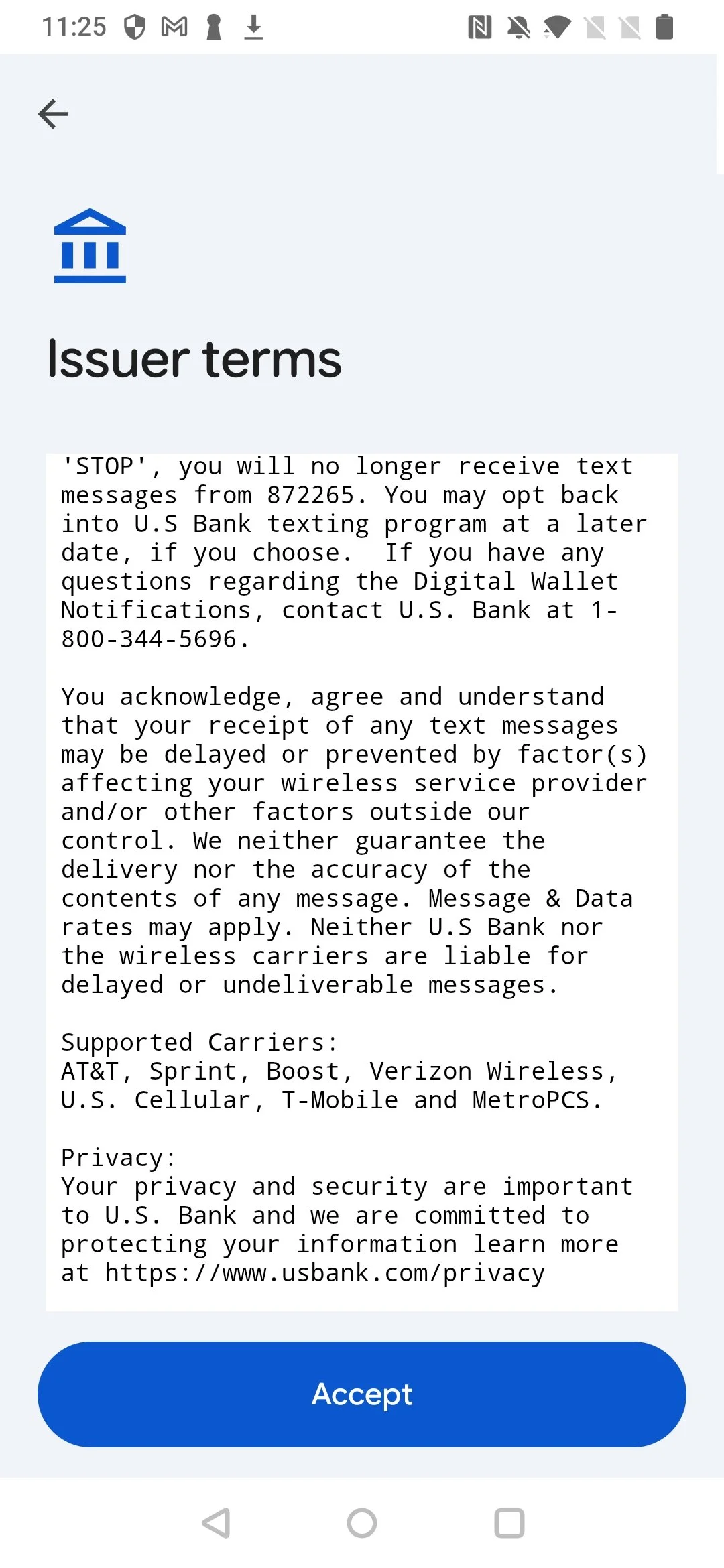
Your card is now ready to use from your mobile wallet and top ups are enabled.
Topping Up Your Card
Once your card has been added to your mobile wallet, tap the Bean to request a top up as you would with any other BlueBean card.
Don't See the Add to Wallet Option?
The Add to Wallet feature is currently available for eligible U.S. Bank Mastercard purchasing cards with a virtual card account.
If you have been issued an eligible card but don't see the Add to Apple Wallet or Add to Google Wallet option, contact BlueBean Support.